Actions
Actions are reusable prompts and workflows for common research tasks. You define them once and trigger them anytime from the home screen, the slash menu, Zotero's right-click menu, or the reader toolbar.
Every action declares what it applies to (items, attachments, notes, collections, or your whole library), and Beaver shows the relevant ones automatically based on what you're doing in Zotero.
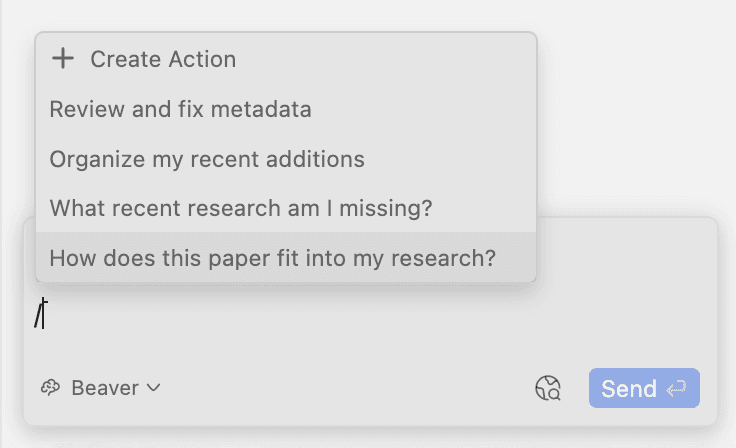
Selecting an action inserts a /action-name into the chat input. You can add your own instructions before sending, so an action is a starting point rather than a fixed script.
Categories
Every action can belong to one of four categories. Categories describe the kind of work an action does, independently of what it applies to:
| Category | What it's for |
|---|---|
| Research | Ask and explore your library for research tasks |
| Write | Summaries, reviews, and notes drawn from your sources, with citations |
| Organize | Tag, sort, and fix metadata. You approve every change |
| Annotate | AI-powered highlights and notes added directly in your PDF |
The four categories are the buttons on Beaver's home screen: click one to see the actions in it that apply to what you have selected. Categories also group the action list in preferences, and set the icon shown next to each action in the slash menu.
An action doesn't need a category. Uncategorized actions still work everywhere else. They just don't appear on the home screen launcher.
Built-in Actions
Beaver ships with built-in actions and adds new ones over time. They appear automatically when the relevant context is available. Here are some notable built-in actions
| Action | Command | Applies to |
|---|---|---|
| Start a research project — creates a new collection and populates it from your library and external search | /start-project | Anywhere |
| Discover new research — finds notable recent or influential papers in your area that aren't in your library yet | /discover | Anywhere |
| Create a Zotero note — writes a note on a topic, synthesized and cited from your library | /create-note | Anywhere |
| Tidy up my library — finds what needs organizing (unfiled items, tags, or metadata) and cleans it up | /tidy-up | Anywhere |
| Auto-tag — assigns consistent tags to the selected items, reusing your existing tags | /auto-tag | Item |
| Sort into collections — files the selected items into the collections where they best belong | /sort-into-collections | Item |
| Color-code this paper — adds color-coded highlights for question, methods, results, and limitations | /color-code | Attachment |
| Annotate — creates targeted highlights across a document or your whole library | /annotate | Anywhere |
| Quick answer — answers a quick question directly, with no tools and no library search | /quick | Anywhere |
Built-in actions are updated when Beaver is updated. If you customize one, only your changes are stored. Every field you didn't touch keeps receiving updates. You can reset a modified built-in action back to its default at any time.
Locked actions
A few built-in actions are maintained by Beaver and are read-only: Color-code this paper, Start a research project, Discover new research, and Tidy up my library. They carry a "Locked" badge and can't be edited, reset, or deleted. To adapt one, use Duplicate to make an editable copy.
Where Actions Appear
All four entry points work the same way: choosing an action inserts its /command into the chat input. You can type extra instructions, then send the message yourself. Nothing is sent automatically.
Home Screen
The home screen shows the four category buttons. Click one to expand it and see that category's actions: first the ones that work anywhere and then the ones that adopt to your current Zotero selection. Changing your selection updates the list without switching categories.
Slash Menu
Type / in the chat input to open the slash menu. It shows all available actions, grouped by what they apply to. For example the attachment open in the reader, "2 selected items", the current collection, and "Anywhere". Type to filter (/skim), and Beaver sorts by recent usage so your most-used actions come first.
Zotero's Right-Click Menu
Right-click items, attachments, notes, or collections in Zotero and pick an action from the Beaver submenu. Beaver only lists actions that fit the selection; when part of your selection doesn't qualify, the submenu header tells you what will actually be used. Library-wide ("Anywhere") actions are not offered here.
The sidebar opens automatically to show progress and results.
The right-click menu requires Zotero 8 or later.
Reader Toolbar
While reading a PDF or EPUB, the Beaver button in the reader toolbar opens a menu with "Ask Beaver" plus every action that applies to the open attachment.
Applies to (Targets)
An action's Applies to setting controls when and where it shows up:
| Applies to | When it appears |
|---|---|
| Anywhere | Always — no context needed |
| Item | When items are selected in the library |
| Attachment | When a PDF, EPUB, or snapshot is open in the reader or selected |
| Item or attachment | When either is available |
| Note | When a note is selected or open |
| Collection | When a collection is selected |
An action appears whenever any of its targets is satisfied, and Beaver attaches the matching context automatically when the action runs. A collection action, for example, won't clutter the slash menu while you're reading a PDF.
Creating an Action
Open Beaver's preferences, go to the Actions tab, and click Add Action. Use the Show filters at the top to narrow a long list by target or category — a new action inherits whatever filters are active.
Each action has:
- Title — the name shown in menus (max 45 characters)
- Description — a short summary shown when you hover the
/commandin the chat (max 200 characters) - Slash command — derived from the title unless you set it yourself; must be unique and contain no spaces
- Argument hint — greyed-out hint shown after the inserted command, e.g. "Optional: what to focus on" (max 100 characters)
- Prompt — the instructions Beaver follows (max 12,000 characters)
- Category — Research, Write, Organize, Annotate, or none
- Applies to — the context the action needs

Sharing Actions
Actions can be exported to a .beaveraction file and shared with anyone else using Beaver.
- Export — open an action in preferences and click Export. This works for locked built-in actions too, so you can share and then tweak them.
- Import — click Import in the Actions preferences and pick a
.beaveractionfile. You can also drag the file straight onto the chat input: Beaver imports it and stages the new command right away. - Duplicate — click Duplicate to create an editable copy of any action, built-in or custom.
Imported actions always arrive as your own editable actions — importing never overwrites an existing action. If the slash command is already taken, Beaver appends a number (/skim becomes /skim-2) and tells you. The imported action opens in edit mode so you can review it before use.
Importing and exporting actions requires Beaver 0.22 or later.
Argument Hints
You can write add argument hints to actions that appear as grayed-out placeholder text in the chat input after the action name. For example, /start-project [Name the project or research topic].
Example Actions
Here are some useful actions to get you started:
Relate to Your Current Research (Item or attachment)
I am working on a project about social mobility in Europe. Write a Zotero note that relates this paper to my project: what it contributes, where it disagrees with my other sources and file the item in the most fitting collection.
Tag by Methodology (Item or attachment)
Review this paper and assign methodology tags from the following list: qualitative, quantitative, mixed-methods, experimental, survey, ethnography, computational, meta-analysis, theoretical. Only use tags from this list.
Reading Checklist (Attachment)
Skim this paper and highlight (1) the research question, (2) the data and identification strategy, and (3) the headline result with its effect size. Add a short annotation comment to each highlight explaining why it matters.
Recent Additions Digest (Anywhere)
Look at the items I added to my library in the last 7 days. For each, give a one-sentence summary and say how it relates to the others. Then suggest which collection each one belongs in, but don't move anything.
Tips for Effective Actions
-
The more specific your prompt, the more consistent the results. Vague instructions like "organize my library" will produce different results each time. Spell out exactly what you want: which items, what criteria, and what the output should look like.
-
If an action assigns tags, collections, or categories, list the valid options in the prompt. For example, "assign tags from: qualitative, quantitative, mixed-methods, experimental" gives Beaver a fixed set to choose from instead of inventing new tags.
-
Choose the right Applies to setting. Binding an action to Item or Attachment means it only appears when that context exists, so it can't be run in a situation it wasn't written for.
-
Use the Description and Argument hint fields. They're what you'll see months later when the
/commandshows up in the slash menu and you've forgotten what the action does. -
Longer, multi-step workflows work well. Actions can walk Beaver through a sequence — search, then compare, then write a note — and Beaver asks you before making changes to your library.
Managing Built-in Actions
You can adapt built-in actions to your workflow:
- Edit — change the title, prompt, category, applies-to, or any other field
- Reset to default — restore a modified built-in action to its original state
- Delete — remove a built-in action from the menus. Built-ins are never truly deleted; they move to the Deleted actions list at the bottom of the Actions preferences
- Restore — bring a deleted built-in action back from that list
- Duplicate — copy any action, including locked ones, into an editable action of your own