Research Tables
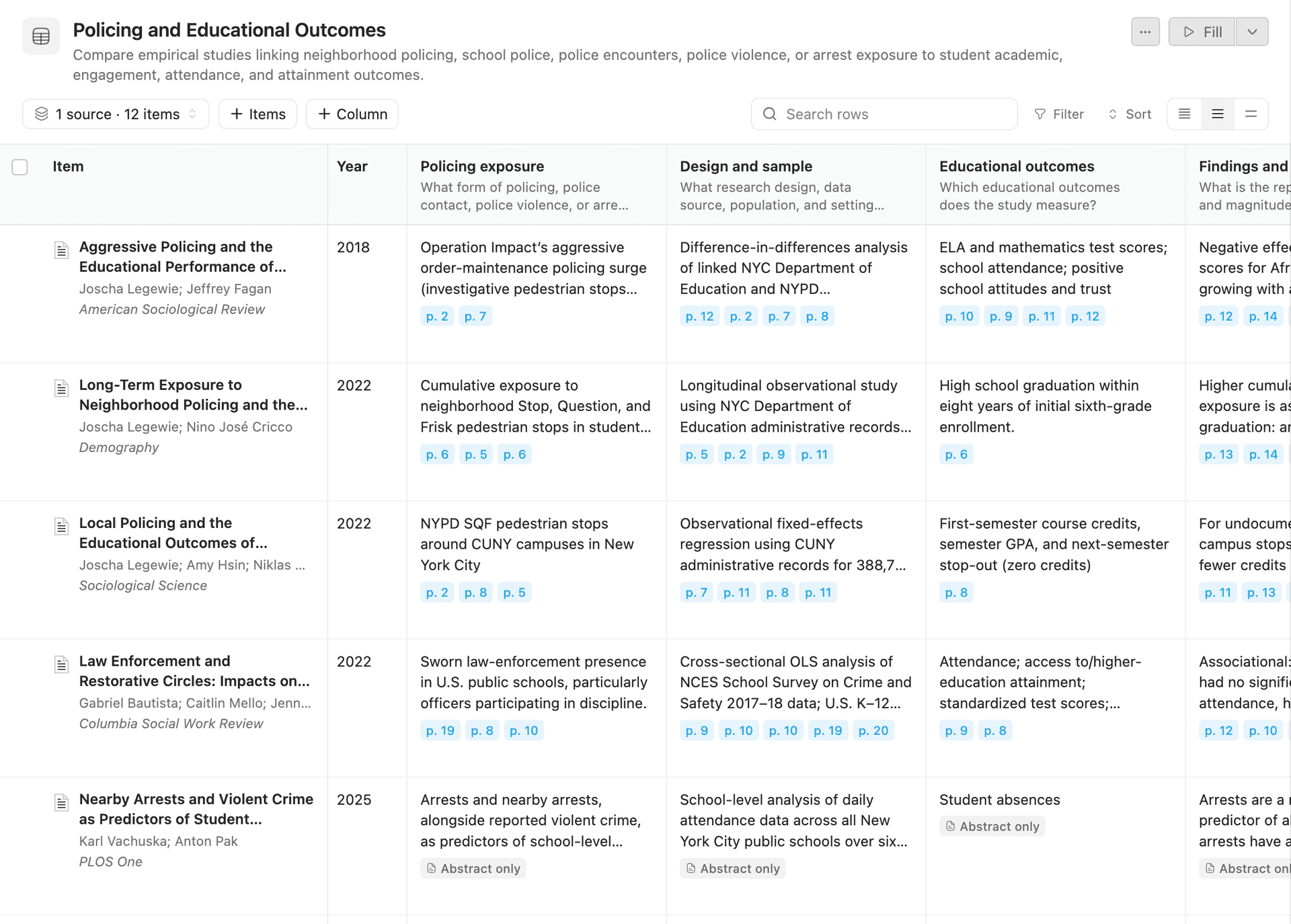
A research table compares the items in your library side by side. Each row is an item. Each column is a question. Beaver reads every item, answers each question, and links every answer to the passage it came from. To check an answer, you click its page number.
Use a table to:
- Compare studies: design, sample, setting, measures and main findings, side by side
- Build an evidence table for a literature review or a paper
- Code your sources: sort each item into categories such as Experimental / Quasi-experimental / Observational, or answer yes / no questions such as Uses panel data?
How a Table Works
Each item is a row
FreeEach column is a question
FreeBeaver answers every cell
Uses creditsAnswers link to passages
FreeYou build the table by adding items and columns. This is free, and changes apply right away. When the table is ready, click Fill. Beaver reads each item and answers every empty cell. This step uses credits, and Beaver shows you the cost before it starts.
Each answer links to the passages it is based on, so you can check any cell in a click. You can correct any answer yourself, and later fills never overwrite your edits.
Creating a Table
You can start a table in three ways:
- From a collection or saved search. Right-click it in Zotero's left pane and choose New Table from Collection (or New Table from Saved Search). Its items become the rows. If you select several collections, choose New Table from Selection.
- From the New Note menu. Click the New Note button in Zotero's toolbar and choose New Beaver Table. This creates an empty table in the current collection.
- By asking Beaver. Describe what you want to compare in the chat. Beaver finds the items, suggests columns and shows you the proposed table. You can edit the title, items and columns before you click Create table.
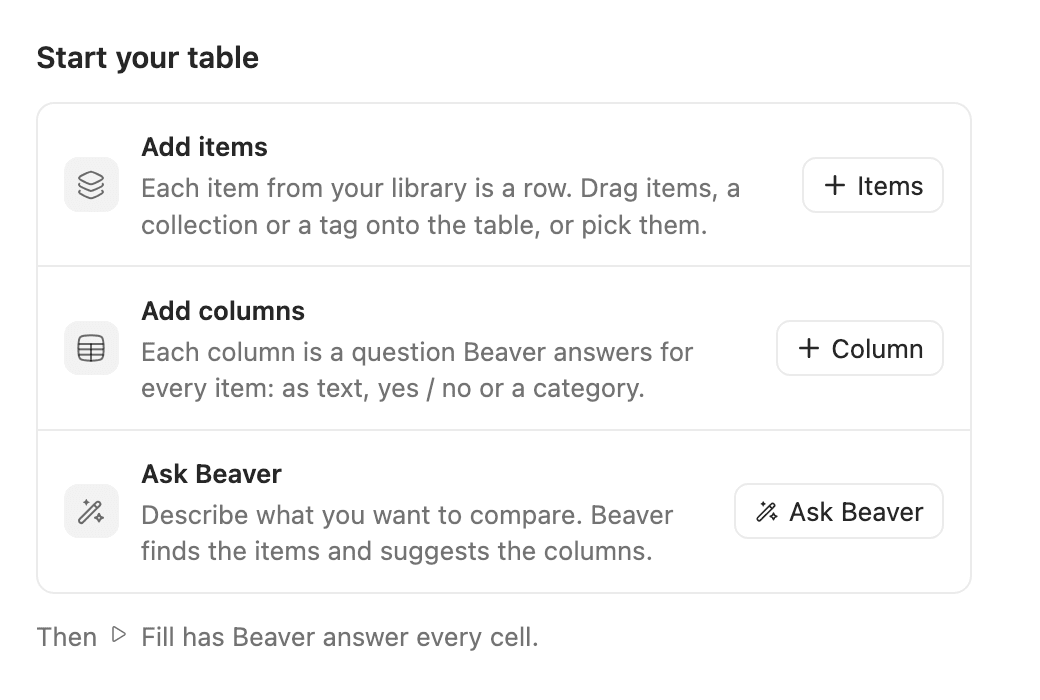
Until a table has items and columns, it shows a short guide with the same buttons as the toolbar: Items to add rows, Column to add questions, and Ask Beaver to have Beaver find the items and suggest columns for you. A table created from a collection already has its items, so the guide appears next to them and starts with adding columns.
Tables are saved in your Zotero library as items, next to your papers and notes. They are filed in the collection you created them in, and they sync like other attachments when Zotero file syncing is on. To open a table, double-click it in your library.
The Table at a Glance
- 1Sources Where the rows come from. Open it to see, remove or restore sources and items.
- 2+ Items Add items, collections, tags or saved searches. You can also drag them onto the table.
- 3+ Column Add a question that Beaver answers for every item.
- 4Search, Filter, Sort Change what you see. Nothing in the table changes.
- 5More actions Copy, export to Excel or CSV, show in library and version history.
- 6Fill Beaver reads the items and answers every empty or out-of-date cell.
Adding Items
Every row is an item from your Zotero library. To add rows:
- Click Items and search your library or choose selected or recent items, a collection, a tag or a saved search.
- Drag items, a collection or a tag from Zotero onto the table.
When you add a collection, tag or saved search, the table remembers it as a source. The sources button, 2 sources · 46 items, lists the table's sources. If a source gains new items later, the toolbar shows 3 new in "Cash transfers" · Add. Click Add to add them. Beaver does not add new items unless you ask.
To remove rows, select them with their checkboxes and click Remove from table, or use the row's menu. Removed items stay out of the table when you add a source's new items. To bring one back, open the sources button and click Restore next to it.
Which document does Beaver read?
For each item, Beaver reads its PDF, EPUB or web snapshot. If an item has more than one, Beaver uses the PDF first, then the EPUB, then the snapshot. To pick a different file, open the row's menu and choose Choose document…. Items without a file are answered from their title and abstract, and their answers are marked Abstract only.
Adding Columns
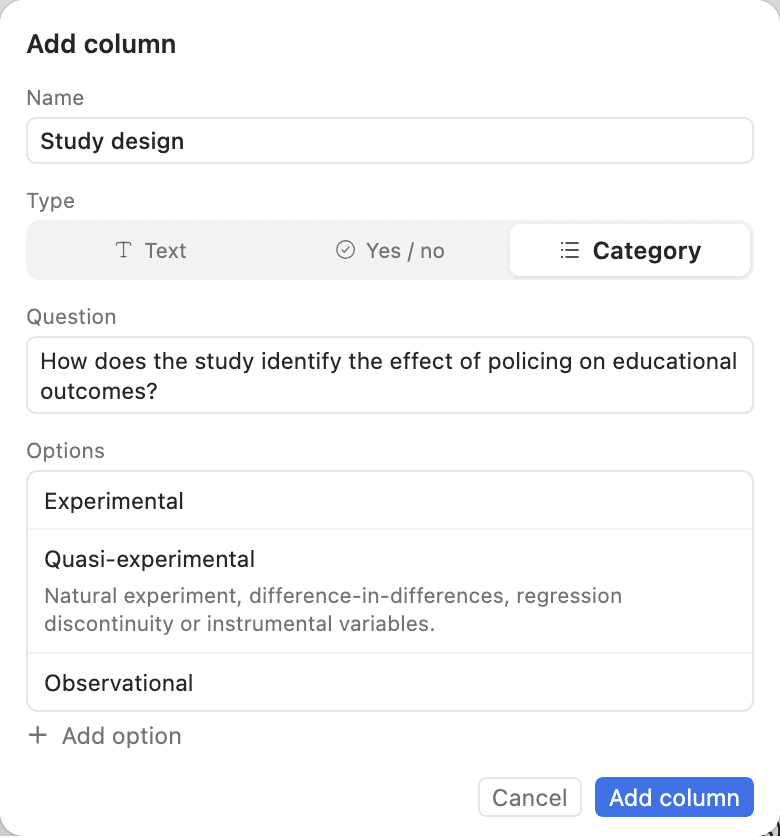
Each column asks one question, and Beaver answers it for every item. Click Column and fill in:
- Name: the short column header, e.g. Study design
- Type: what kind of answer you want (see below)
- Question: what Beaver should find out, e.g. How does the study identify the effect of policing on educational outcomes?
- Options (Category only): the categories Beaver can choose from. Click Define to say what counts as a category.
| Type | Use it for | Example |
|---|---|---|
| Text | Descriptions, numbers, quotes | What is the sample size? Report the number of participants. |
| Yes / no | A criterion an item meets or not | Does the study use administrative data? |
| Category | Sorting items into groups you define | Experimental / Quasi-experimental / Observational |
Writing Good Questions
- Be specific. What is the sample size, as a number of students? gives cleaner answers than Sample?
- Name the unit or format for numbers and dates: Report the effect in standard deviations, or Give the years of data collection as a range.
- Define your categories. A short definition, such as Quasi-experimental: natural experiment, difference-in-differences, regression discontinuity or instrumental variables, makes Beaver's choices consistent across items.
- Ask one thing per column. Two short columns are easier to compare, filter and sort than one long one.
When a paper doesn't contain the answer, Beaver writes Not reported instead of guessing.
Filling the Table
Click Fill 46 rows in the top right corner. Before anything runs, Beaver shows you what it will fill:
- what will be filled: new columns, new items and answers that are out of date
- how many items it will read, and how many of them only from their title and abstract
- the cost in credits and your current balance
Click Try 5 first to fill just five rows and check the answers before you fill the whole table. Fill only answers cells that are empty or out of date. It never redoes answers that are up to date, and it never changes an answer you edited.
The arrow next to Fill opens more options: Fill everything pending, Try on 5 rows first, Fill selected rows, and Retry rows that failed. Each column's menu also has Fill this column, and each row's menu has Refill row.
While Beaver fills the table, the button shows its progress, and answers appear as they arrive. You can keep working, close the table's tab, or click Stop. Stopping keeps every answer filled so far. A fill stops if you quit Zotero. The remaining cells stay empty until you fill again.
What filling costs
Filling costs 0.2 credits per item read from its PDF, EPUB or snapshot. That is 1 credit for every 5 items. An item answered only from its title and abstract costs 0.05 credits. Items that can't be read are free, and a stopped fill only charges for the rows it filled. Building, editing and exporting tables never uses credits. See Beaver Credits.
Checking the Answers
Every answer shows tags that tell you where it came from and whether it is up to date:
| Tag | Meaning |
|---|---|
| p. 12 | A passage the answer is based on. Hover to read the quote. Click to open the PDF at that passage. |
| Abstract only | Answered from the title and abstract. No full text was read. |
| Out of date | The question or the item's document changed after this answer was written. The next Fill updates it. |
| Edited | You edited this answer. Fills never change it. |
| No passage | The answer cites no passage. Check it before you rely on it. |
| Not reported | The item doesn't say. |
| — | Not filled yet. The next Fill answers it. |
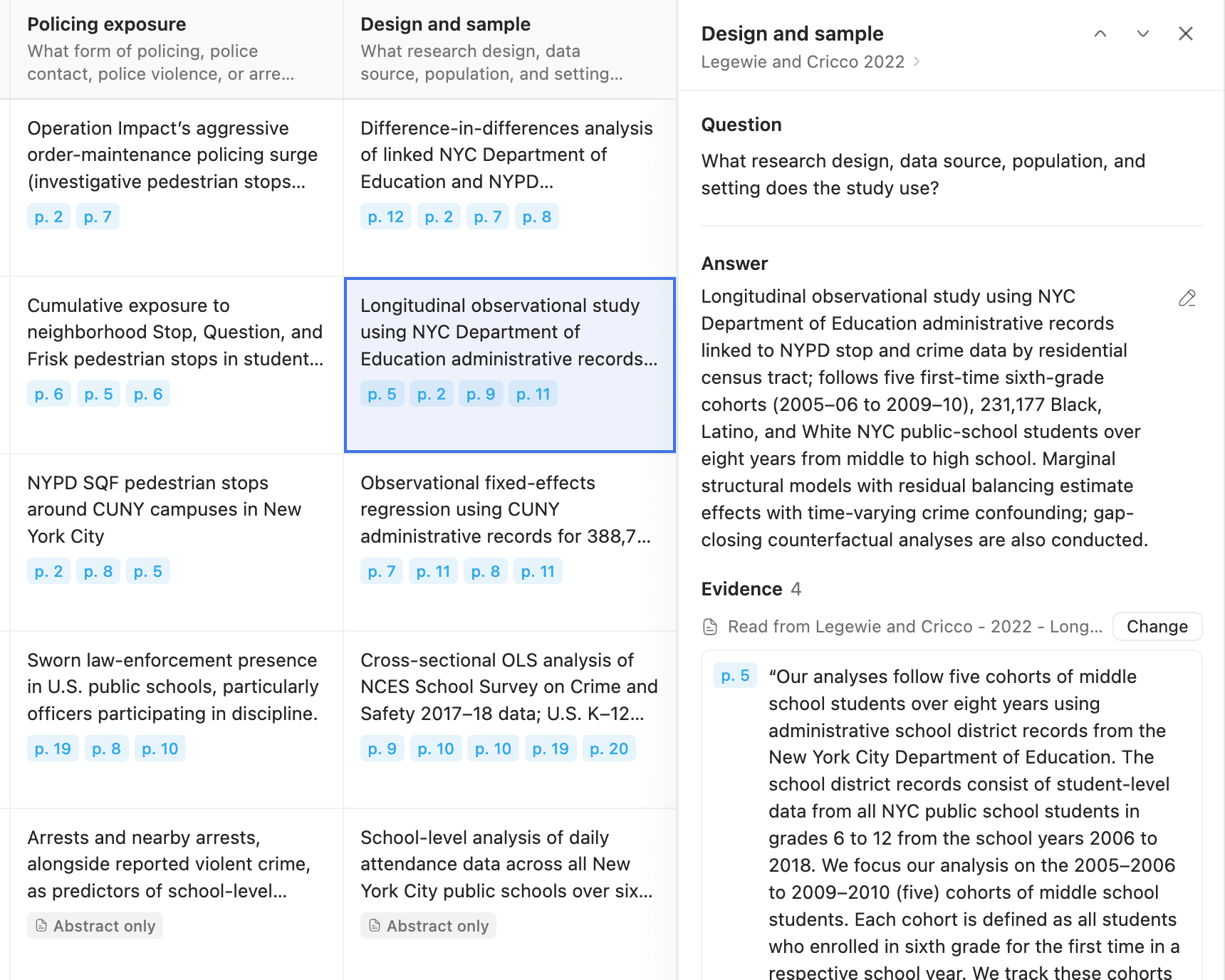
Click any cell to open its details on the right. The panel shows the question, the full answer, and each quoted passage with its page number. It also shows which file the answer was read from, with a Change button to pick another one. Use the arrows at the top to move to the previous or next item.
Correcting an Answer
Click the pencil next to an answer to edit it. You can add an optional note on why you changed it. For a Category column, you pick another option instead.
Edited answers are yours. They are marked Edited, and no fill ever changes them. You can also mark a cell Not reported or Clear cell. To undo your edit, choose Reset to Beaver's answer. Beaver's earlier answer comes back at no cost.
Changing a Table
You can change a table at any time. Changes apply right away and cost nothing.
- Edit a column: open the column's menu and choose Edit column…. If you change the question, Beaver asks what to do with the existing answers. Choose Keep them for a small wording fix, or mark them out of date so the next Fill updates them.
- Change a column's type: choose Change type from the column's menu. This clears the column's answers, so Beaver asks you first.
- Hide, sort or remove a column: use the column's menu.
- Rename the table or edit its description: click the title or description.
- Search, filter and sort: use the toolbar to change what you see. This doesn't change the table.
After you remove a column, rows or a source, an Undo button appears for a moment. Beaver also keeps earlier versions of the table. Open More actions and choose Version history to see or restore one. Restoring a version saves it as a new version, so you never lose the current table.
Working With Beaver in Chat
Beaver can build and update tables with you in the chat. When a table is open, click Ask Beaver or open the Beaver sidebar, and the table is added to your message.
Beaver can add and remove items and columns, edit questions, fill the table, and answer questions about it. Edits apply right away, and you can undo them from the chat. Before Beaver fills cells, it shows you the cost and waits for your approval. Beaver doesn't edit answers in cells. If an answer is wrong, correct it in the table.
Exporting and Sharing
Open More actions in the top right corner to:
- Copy as text to paste the table into a document or email
- Export to Excel or Export CSV for analysis in a spreadsheet or in R, Stata or Python
- Show in library to find the table item in Zotero
Exports keep your current sort order.
Good to Know
- Limits: a table can have up to 500 items, 20 question columns and 5,000 answers.
- One document per row: each item is answered from one file. Use Choose document… to pick which one.
- Excluded libraries: Beaver doesn't read items from libraries you excluded in Beaver's preferences. You can't add them to a table, and Fill skips them. See Libraries.
- Group libraries: you can create tables in group libraries where you have edit rights. In read-only libraries, tables open but can't be edited or filled.