Ways to Open Beaver
You can use Beaver in three places in Zotero: the side panel next to your library or the paper you are reading, the Beaver window with your chat history at hand, and the quick prompt, a small card for a quick request. Each has its own keyboard shortcut. They all use the same account and the same chat history, so you can pick whichever suits the task.
Next to your library or the paper you are reading
Its own window, with your chat history and room for a second chat
A small card for a quick request, without opening the panel
Side Panel
The side panel is Beaver's home in Zotero. To open or close it, press ⌘+J (Mac) or Ctrl+J (Windows and Linux), or click the magic wand button in the top right of Zotero's window.
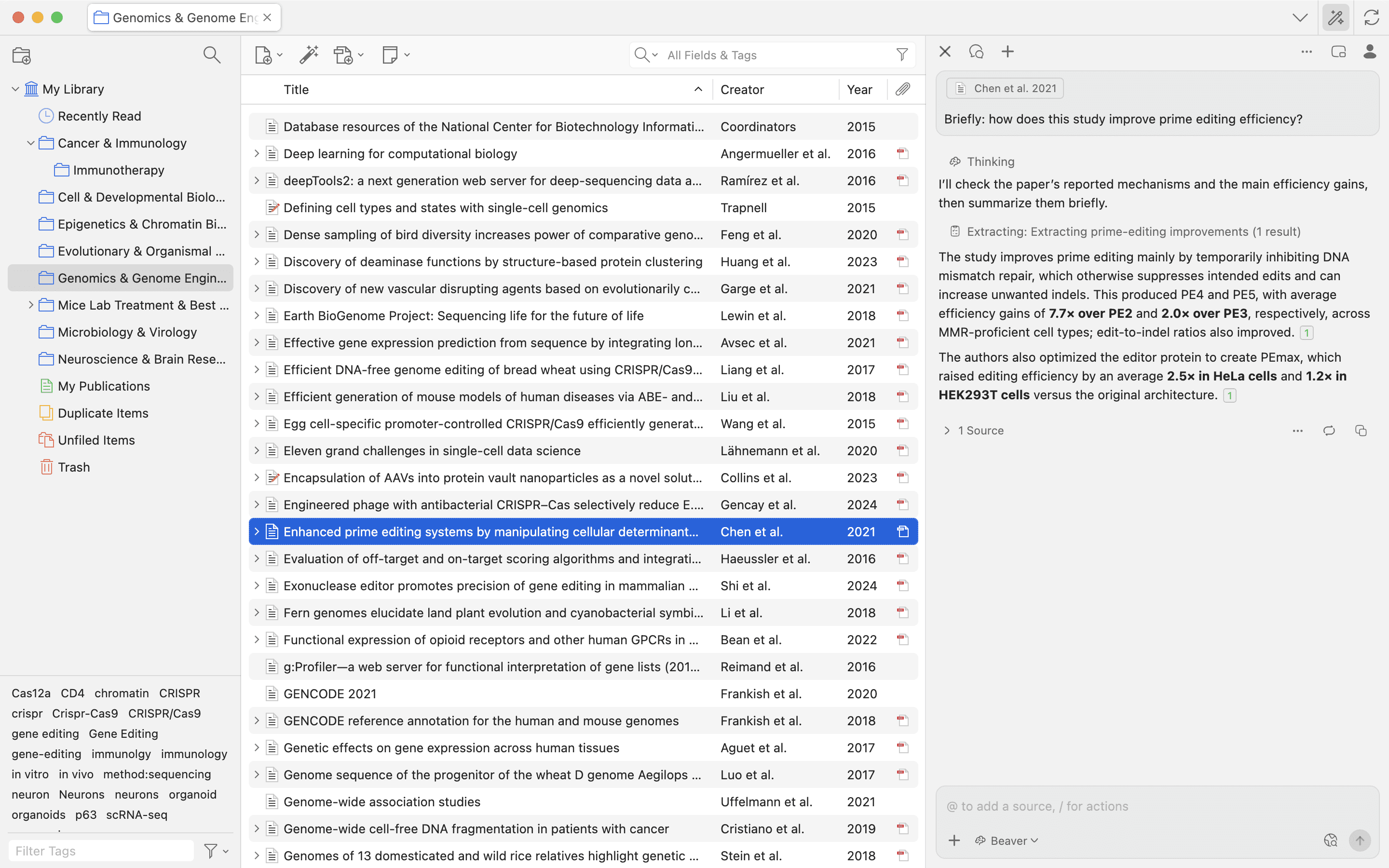
The panel goes with you as you move around Zotero. In the library, it takes the place of the item pane on the right. When you open a paper, it moves to the right of the reader, and your chat stays where it was. When you close Beaver, Zotero's own panes come back. To make the panel wider or narrower, drag the divider on its left edge.
What Beaver sees. The side panel picks up what you are working on:
- In the library, the items you have selected are added to a new chat. You can turn this off in Beaver's settings (see below).
- In the reader, the paper you have open is attached to your message, and Beaver knows which page you are on.
- Text you select in a PDF appears as a chip above the message box, so you can ask about exactly that passage. Annotations you create while Beaver is open are added the same way.
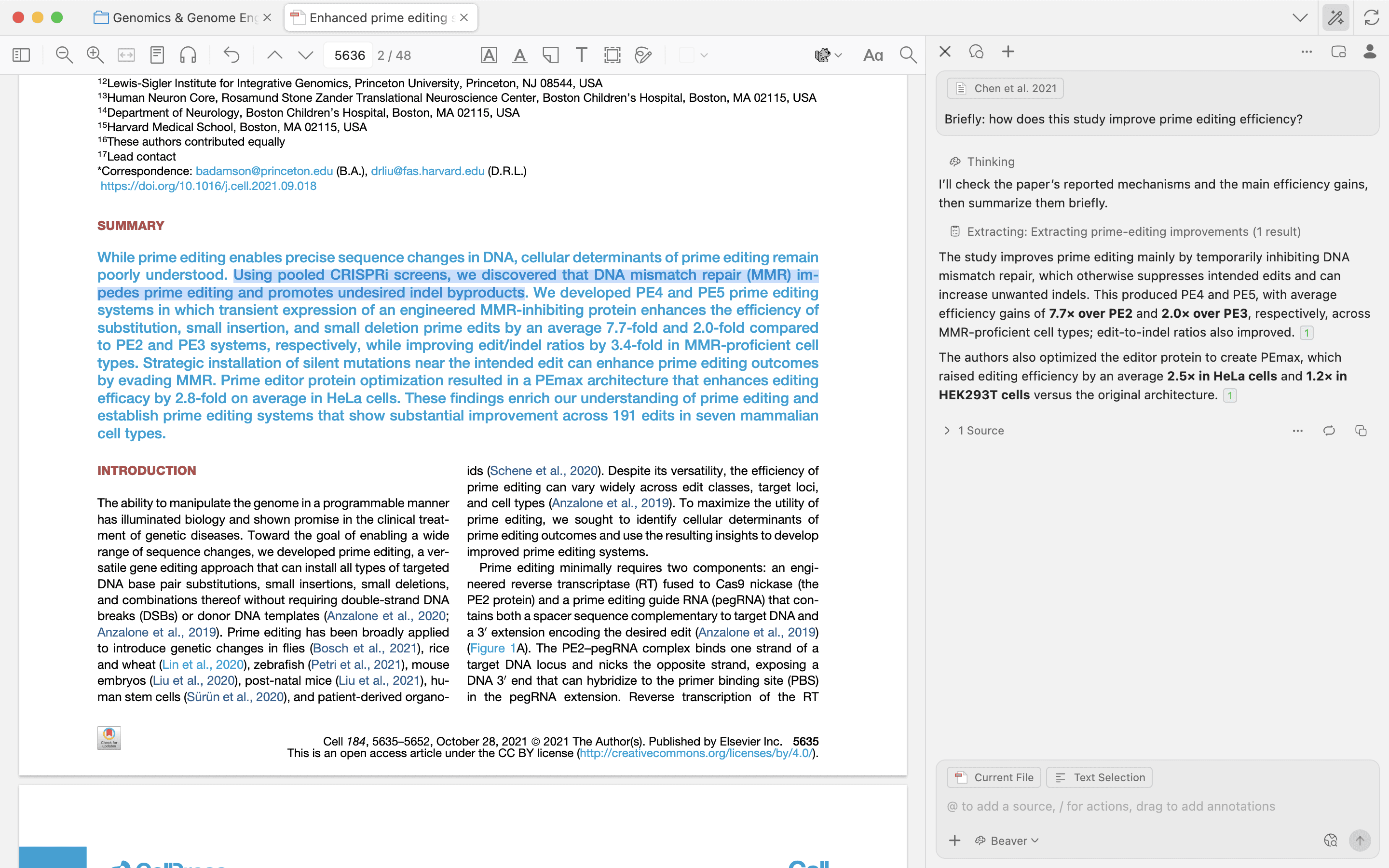
See Reading Assistant for more on working with Beaver while you read.
Beaver Window
The Beaver window gives Beaver a full window of its own, with your chat history in a sidebar. It suits long sessions, a second monitor, or working on two chats at once.
To open it:
- Press ⌘+⇧+J (Mac) or Ctrl+Shift+J (Windows and Linux).
- Click the Open in separate window button in the side panel's header.
- To move a particular chat into the window, open the chat's actions menu and choose Open in Beaver window. This is available once Beaver has finished responding.
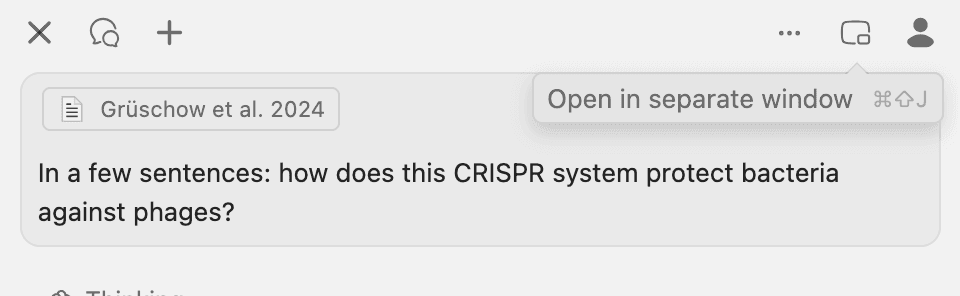
There is only one Beaver window. If it is already open, the shortcut brings it to the front.
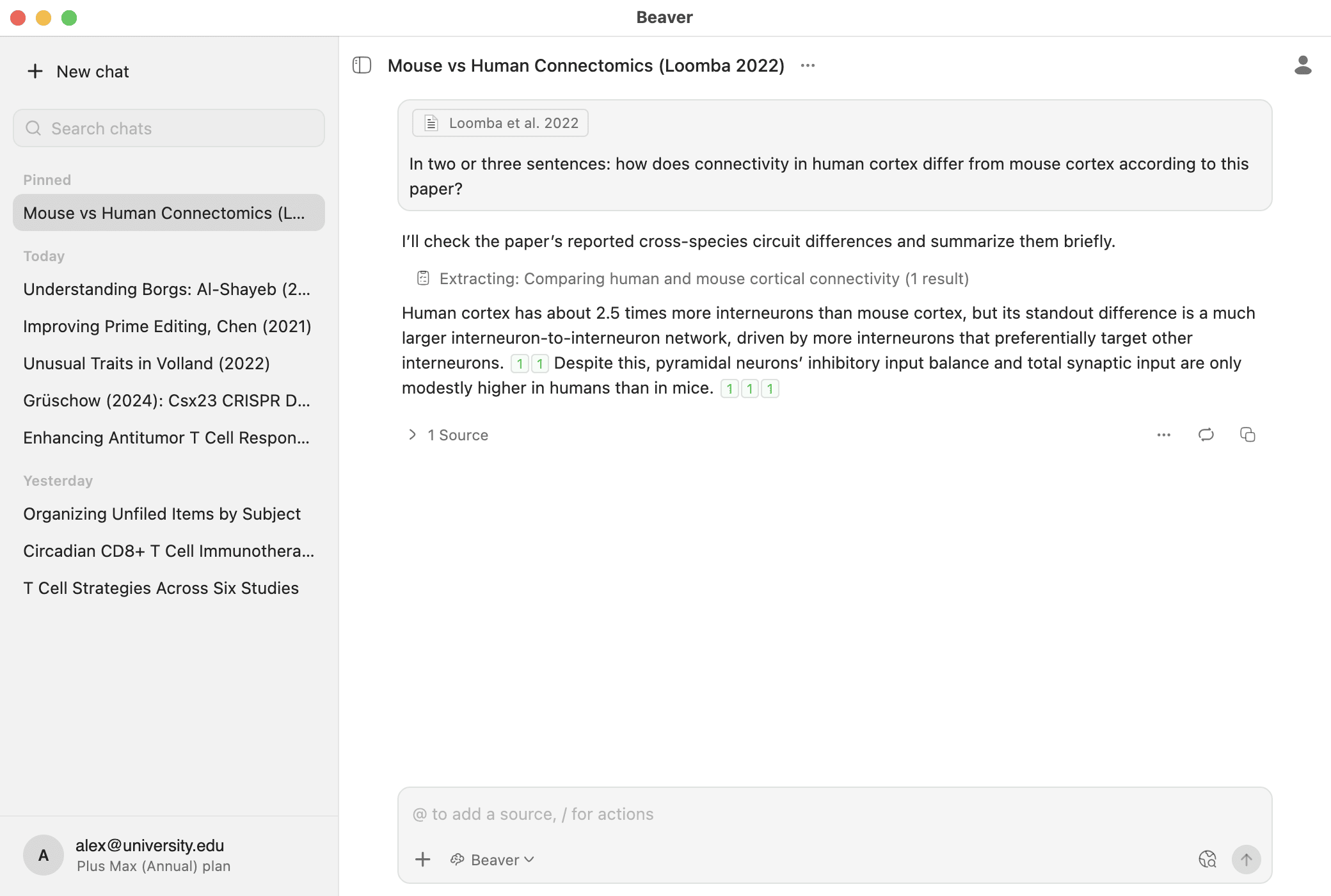
Your chat history. The sidebar on the left lists your chats, with pinned chats at the top and the rest grouped by date. You can search your chats, start a new one, and rename, pin or delete a chat from its menu. To hide the sidebar, click the sidebar button in the window's header.
A second chat. The window and the side panel work independently, so each can show a different chat, and both can be working at the same time. If you open the same chat in both, the one that is not responding shows a note with a button to go to the other window.
It still knows what you are reading. The window follows the Zotero window you used last. A new chat includes the items you have selected, and in the reader, the open paper and any text you select, just like the side panel.
Window shortcuts. In the Beaver window, ⌘+N starts a new chat, ⌘+F finds text in the chat, and ⌘+W closes the window (use Ctrl on Windows and Linux). The window remembers its size and position.
Quick Prompt
The quick prompt lets you ask Beaver something without opening the side panel. Press ⌘+⌥+J (Mac) or Ctrl+Alt+J (Windows and Linux), anywhere in Zotero. A small card appears in the bottom-right corner of the window.
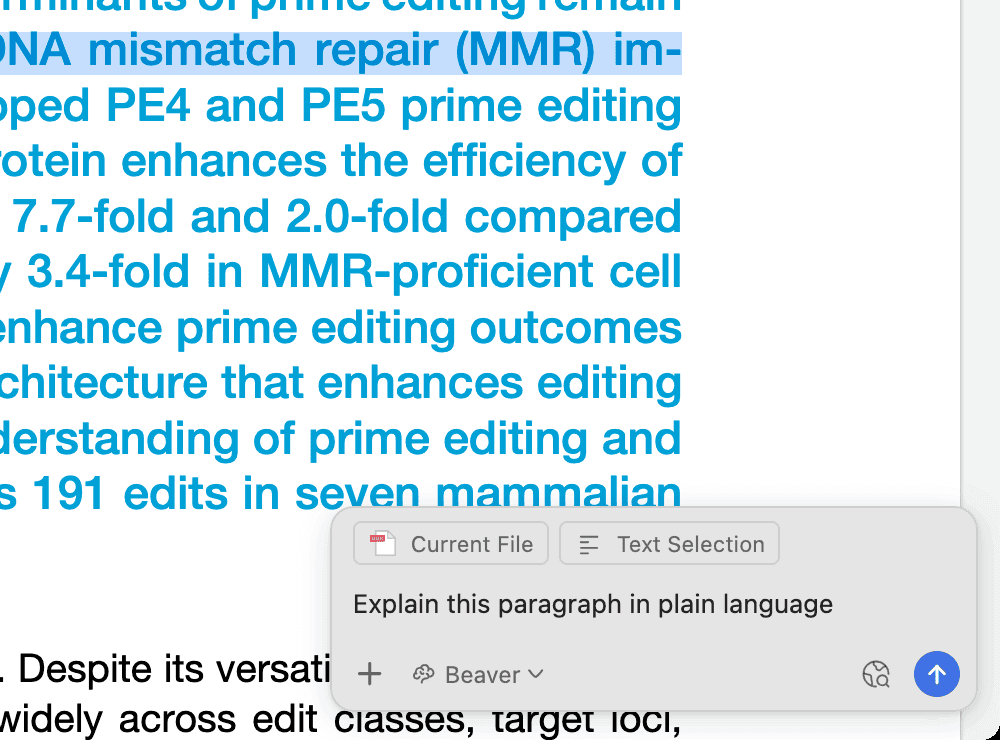
The quick prompt starts a new chat with what you are working on: the items you have selected in the library, or the paper you have open in the reader, along with any text you selected. Type your request and press Enter. Everything from the side panel's message box works here too, including / for actions and @ to add sources.
To close the quick prompt without sending, press Esc, click the close button, or press the shortcut again. If you switch tabs or open the side panel, Beaver keeps what you typed.
After you send. The card turns into a small status card in the same corner. It shows what Beaver is doing, asks you if a step needs your approval, and sums up the result when Beaver is done. To read the full answer, click the card or Open Beaver. The chat opens in the side panel.
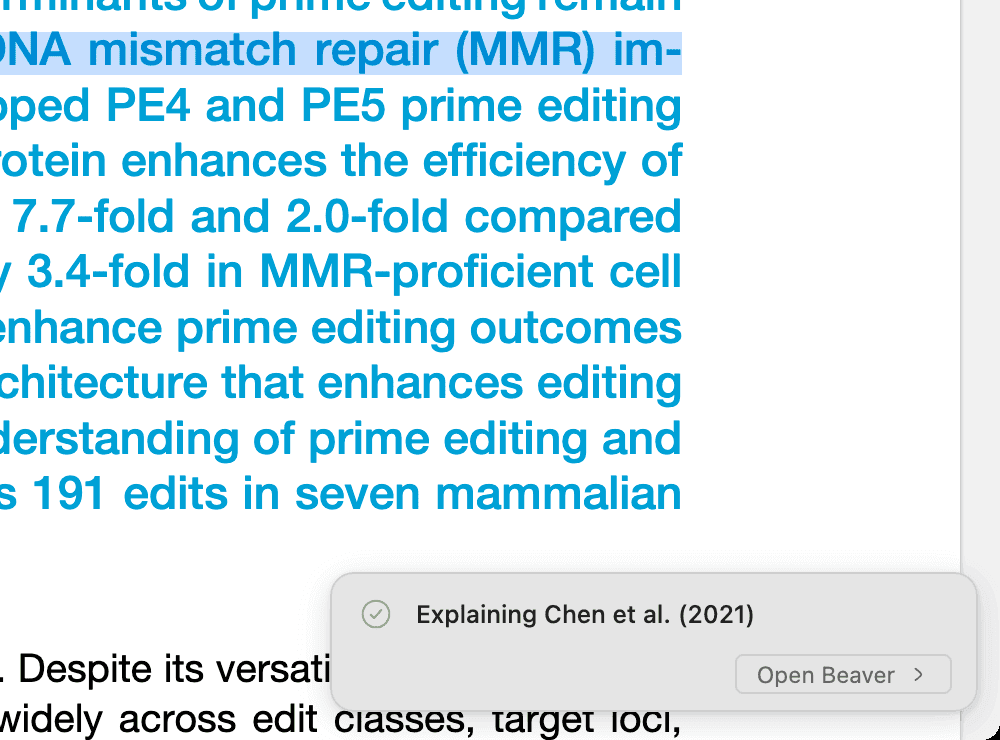
While Beaver is still working on a response, the quick prompt shows a note instead of a new message box. Wait for that response to finish, or open the side panel to start another chat.
The quick prompt is available in Beaver 0.25 and later.
Which One to Use
| You want to | Use |
|---|---|
| Ask a quick question about the paper you are reading, then keep reading | Quick prompt |
| Work through a paper or a collection with Beaver alongside | Side panel |
| Run a long research session, keep your chat history in view, or use a second monitor | Beaver window |
| Have two chats going at once | Side panel and Beaver window together |
Changing the Shortcut
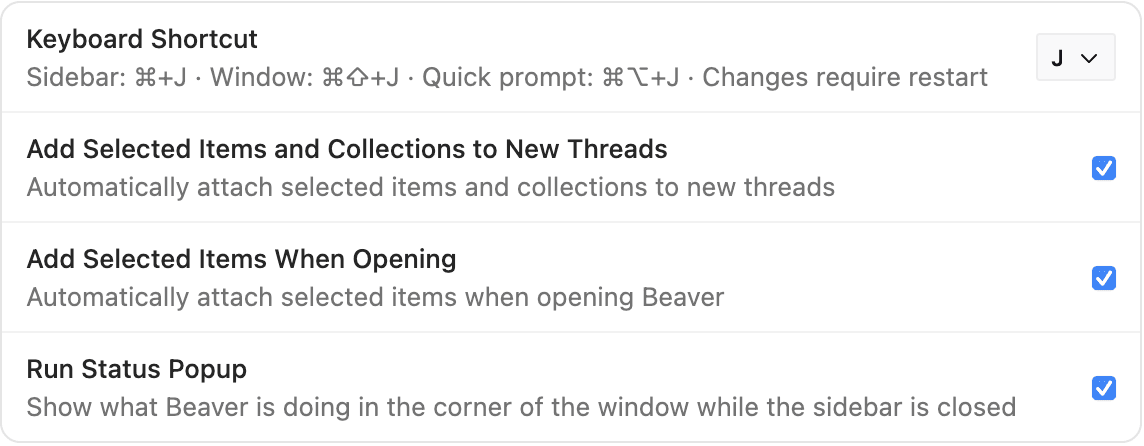
All three shortcuts use the same letter, J by default. To change it, open Beaver's settings from the account menu and go to General. Under Sidebar, pick a letter for Keyboard Shortcut. The new letter applies to all three shortcuts after you restart Zotero.
Related Settings
In the same section:
- Add Selected Items and Collections to New Threads: adds your selection to every new chat, including chats started from the quick prompt.
- Add Selected Items When Opening: adds the items you have selected in the library when you open the side panel.
- Run Status Popup: shows the status card in the corner of the window while the side panel is closed.